
FAQ and Problem Solution Articles
Why Your Website Contact Form Is Not Working, and How to Fix It
A contact form that says thank you and never delivers the lead, and the seven checks that find where the message went.
Call (714) 823-3164 or ask a question. Clear recommendations, even if we never work together.
Most contact forms are not broken. The contact form sends fine, then the email gets lost. The usual causes are mail sent straight from the web server, missing SPF and DKIM records, a notification address nobody checks, or a spam filter eating real messages. Test it end to end to find out which.
Jump to a section
- The Form Is Rarely the Problem
- Run the Test That Tells You Where It Broke
- Why Mail Sent by Your Web Server Gets Junked
- SPF, DKIM, and DMARC in Plain English
- When Your Own Spam Filter Eats the Lead
- The Boring Causes That Account for Most of It
- How to Know Tomorrow Instead of Next March
- The Four Places a Lead Can Disappear
- The Seven Checks, in the Order That Saves Time
- Setting Up a Form That Keeps Working
- Questions That Come Up During the Fix
- Questions
The Form Is Rarely the Problem
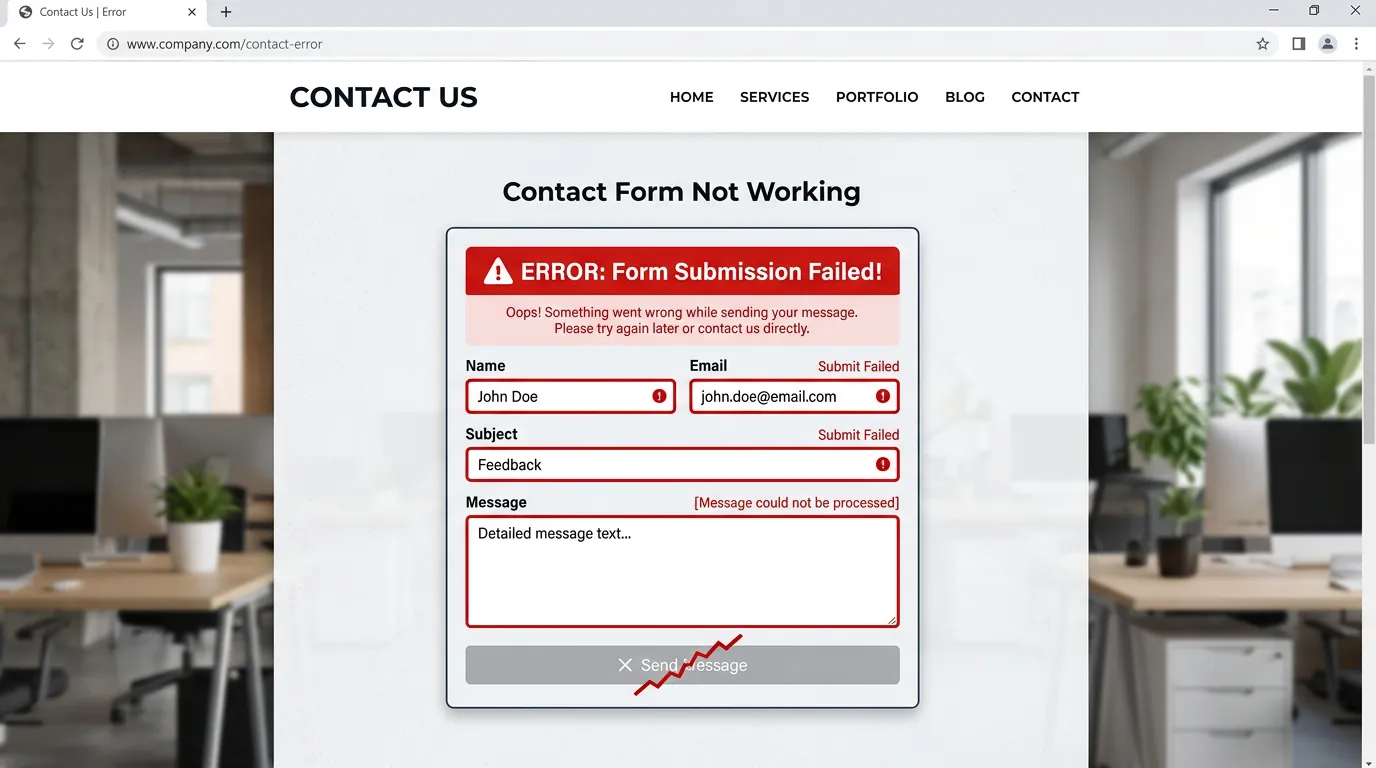
When leads stop arriving, almost everyone blames the contact form. The contact form is usually fine. It takes the message, saves it, and says thank you. What fails is the email meant to tell you about it, which changes where you look. A form has three stages: it collects, it stores, and it notifies. Most forms keep a copy of every message inside the site. If you use a form plugin, log in and find the entries list. If entries are there and your inbox is empty, the form works and the mail does not. That is good news. You have not lost the leads, only the alerts. Read them now, call those people back, then fix the notification. If there are no entries either, the problem sits earlier. Something is blocking the send, usually a script error, a plugin conflict, or a spam check rejecting the visitor. Find out which of the two you have first. It takes five minutes and saves a day of guessing.
Run the Test That Tells You Where It Broke
Test it the way a customer would, not the way you built it. Sitting at your desk on office wifi, logged in, using your own work email, is the one test that proves nothing. Do this instead. Take your phone off wifi so you are on cell data. Open the site from a Google search, not a bookmark. Fill the contact form out with a real message and an email address you can check, ideally at a different provider than your work mail. Now check three places in order. The inbox that is meant to get the alert. That inbox's spam and junk folder. The entries list inside the site. Where the message shows up tells you the answer. In the inbox means it works. In spam means your mail is not trusted. In the entries only means the notification is failing. Nowhere at all means the send itself is blocked.
Why Mail Sent by Your Web Server Gets Junked
This is the most common cause by far. Many sites send notification mail straight from the web server, using whatever basic mail function the host provides. That mail comes from a server that is not a mail server. It has no reputation and often no proper signing. Spam filters at Gmail and Outlook treat it with suspicion, and much of it lands in junk or gets dropped with no bounce. Nothing tells you. The site says the message sent, because from its view it did. The fix is to route the mail through a real mail service instead. Most platforms have a plugin or a setting for this. Connect it to your business email account, or to a service built for sending this kind of mail. The mail now leaves from a system set up to be trusted, and you get delivery logs. Those logs are worth as much as the fix. Once you can see a message left and was accepted, you stop arguing about whether it was sent.
SPF, DKIM, and DMARC in Plain English
Three DNS records decide whether a mail provider trusts mail claiming to come from your domain. They sound technical. They are not hard. SPF is a list of the servers allowed to send mail as you. If your site sends through a service that is not on the list, receivers get suspicious. DKIM is a signature. Your mail service signs each message, and the matching key sits in your DNS so receivers can check it. DMARC is your instruction for what happens when a message fails those checks. It can say ignore it, junk it, or reject it, and it gives you reports. Adding all three is normally a twenty minute job for whoever manages your DNS, and your mail provider gives you the exact values to paste. One warning. If more than one thing sends mail as your domain, and most businesses have several, every sender needs covering. Your email provider, your contact form, your invoicing tool, and your booking system all count.
When Your Own Spam Filter Eats the Lead
Sometimes the mail arrives and you never see it. Business inboxes filter hard, and a message from your own website looks odd to a filter. It comes from an unfamiliar sender, it holds a stranger's contact details, and the subject line is often something like New form submission. Spam filters do not like that shape. Check the junk folder, then check the rules. Many offices run filters set up years ago by someone who has left. A rule that files anything with the word quote into a folder will hide real jobs for months. Also check whether alerts go to a shared address like info at your domain. Those tend to be the least watched inbox in the company. Two small changes help. Add the sending address to your contacts and mark one message as not spam. Then change the subject line to something a person recognizes, such as Website lead from the drain cleaning page.
The Boring Causes That Account for Most of It
Before you dig into DNS, rule out the dull stuff. The alert address is wrong, or belongs to someone who left. The site sends to a no reply address that cannot receive mail. Someone set the from address to the visitor's email, which most providers now reject. A plugin update broke the contact form and nobody noticed. The spam check is too strict, so real visitors get blocked with no message. A required field is invisible on phones, so the contact form never submits. The mailbox is full. The domain expired. Each is common and takes minutes to check. Work down the list before paying anyone to investigate. One more is worth a look. Watch what happens right after someone clicks send. If the page just sits there, or shows a raw error, people assume it failed and leave. A clear thank you page is better manners and a way to count how many people finish.
- The alert goes to an address nobody opens
- Alerts sent to a no reply mailbox that cannot receive
- The from address was set to the visitor's email
- A plugin update broke the form quietly
- Spam checking set so tight it blocks real people
- A required field that is hidden or broken on phones
How to Know Tomorrow Instead of Next March
The real damage is not one lost lead. It is finding out in March that the contact form stopped in November. Build in a way to notice. Send every alert to two addresses at two different providers. If one filters it, the other still lands. Turn on entry storage inside the site, so a copy exists even when mail fails. Set up a conversion event in your analytics for form completions. Then you have a chart, and a flat line is easy to see. Give the monthly test to whoever opens the office on the first. If you get more than a few forms a week, use a mail service with delivery logs and read them monthly. Look for bounces and messages marked as spam. Last, keep a note of the working setup. Which service sends the mail, which addresses get alerts, and what the subject line says. When a new person takes over in two years, that note stops this happening again.
The Four Places a Lead Can Disappear
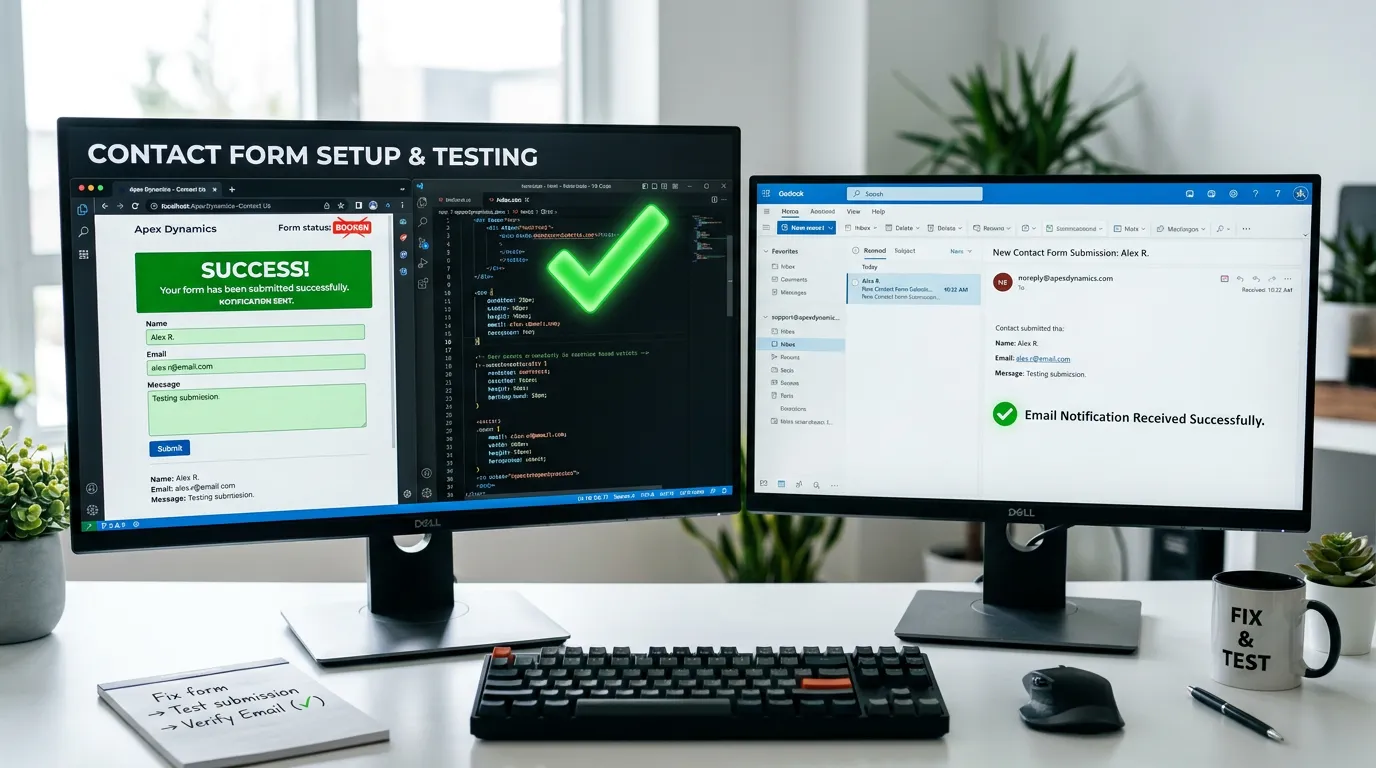
A form submission passes through several stages. Each fails differently, and each has its own fix.
Find the last stage that worked. The fix is always in the stage right after it.
The Seven Checks, in the Order That Saves Time
Work down this list. Most forms get fixed in the first three, and none need a developer.
Look for stored entries
Leads may be waiting in the site.
Check the junk folder
On the exact inbox being alerted.
Confirm the alert address
A real mailbox someone opens.
Check the from address
Your domain, not the visitor's.
Test on cell data, not wifi
Logged out, from a search result.
Review recent plugin updates
Roll one back and test again.
Check your SPF and DKIM records
Your mail provider lists them.
Setting Up a Form That Keeps Working
Most take a few minutes during setup and save months of quiet losses.
Do this
- Send alerts to two addresses at two different providers.
- Send the mail through a real mail service, not the web server.
- Put the page name in the subject line so you know the source.
- Store every entry in the site as a backup copy.
- Set reply to as the visitor and from as your own domain.
Not this
- Do not send alerts to a no reply mailbox.
- Do not set the from address to the visitor's email.
- Do not use a shared inbox as the only alert address.
- Do not add nine required fields and wonder about drop off.
- Do not test only from your desk, logged in, on office wifi.
Questions That Come Up During the Fix
How long do DNS changes take to work?
Should I put a captcha on my contact form?
My form worked for years and then stopped. Why?
Would rather we handled it?
This article covers how to do the work yourself. If you would rather have it done for you, that is what our web design and development service is.
Web Design and Development
Frequently asked questions
Can I tell if someone filled the form but it failed?
Should I switch to a third party form service?
Is a phone number better than a contact form?
How often should I test my contact form?
Sources
- Google: Email sender guidelines(opens in a new tab) Gmail's rules for authenticating outbound mail, including SPF, DKIM, and DMARC.
- Google reCAPTCHA(opens in a new tab) The spam check most contact forms use, and the settings that decide who gets blocked.
- Google Postmaster Tools(opens in a new tab) Where you can see how Gmail treats mail sent from your own domain.